Martindale-Avvo Leads Manager: Navigating The Leads Manager
Thank you for choosing Martindale-Avvo. Welcome to your portal. In this video, we’ll explain how to use this platform and its many benefits for expanding your practice and attracting new clients. For your convenience, we’ve broken this tutorial down into eight key sections.
We are excited to show you how to use your dashboard profile, campaigns, payments, leads, articles, settings, and inbox. Let’s get started. First, we’ll look at your Leads Manager dashboard.
Start by scrolling down the left hand navigation bar and select Leads Manager dashboard. When working on your account, confirm you are selecting the tabs beneath the Leads Manager header.
You should see your firm at the top of the screen and to the right, you will find your customer ID number.
This number is unique to your firm and helps us identify your account. Your dashboard features a snapshot of your month to date account activity, including your incoming leads, current balance and profile views. Beneath your quick view, you can find monthly breakdowns of your account activity, including your leads, profile views, spending summary, and more. Next is your profile section.
The profile tab is positioned beneath your dashboard button in the left hand navigation bar. This is where you can customize your firm’s complimentary profile. You can update your profile at any time with photos, videos, your firm, bio specialties, and any other relevant data.

Adding more to your profile can help increase organic SEO traffic to your website. You can preview your changes by selecting the preview profile tab in the upper right corner. This shows you what a potential client will see when they view your profile online.
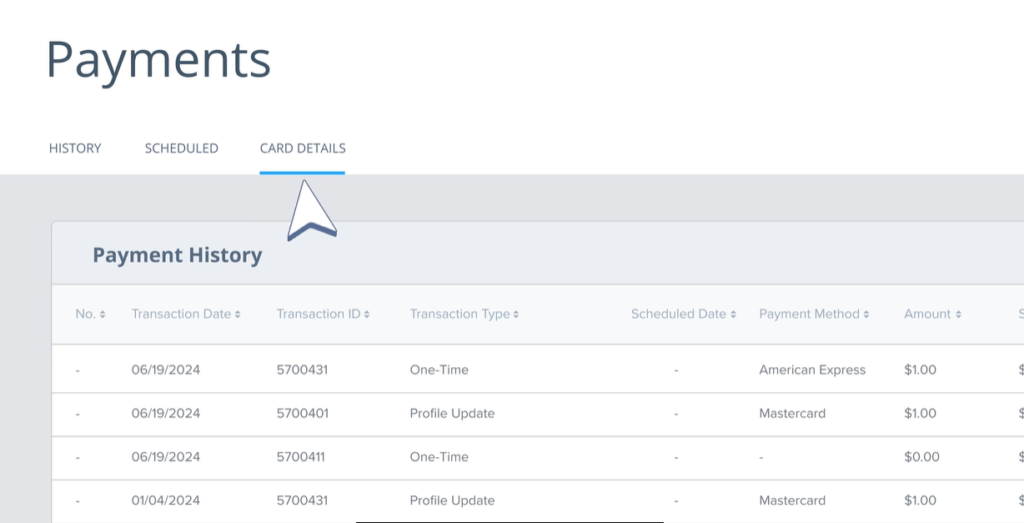
Switch to your campaigns tab for details about your active campaigns. If you have any questions or would like to make any changes, contact your account manager. The payments tab helps you keep track of all payments. Review your payment history for previous charges, scheduled payments and reimbursements. You can also add or edit your payment method by selecting card details. When you click into the leads section, you find the leads dashboard. This holds a month by month summary of your firm’s incoming leads, views, and directory searches.
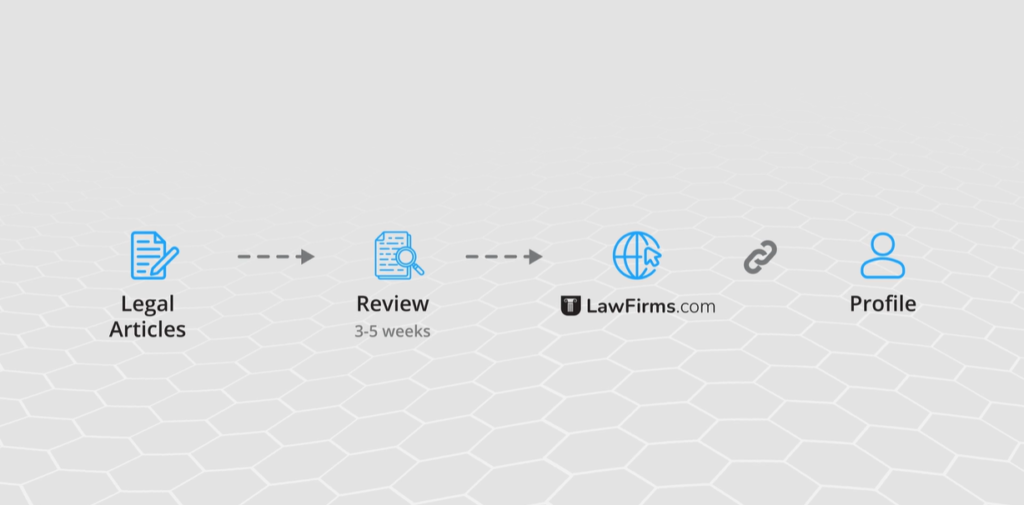
You can also click the paper leads tab to see an in-depth view of your overall costs. Use the leads manager to get personal details about an individual lead or to take action on a lead. The leads manager is found at the top of your left hand navigation bar. The article section is a great way to share legal articles with prospective clients and showcase your leadership and expertise in the legal field. Articles are in review for roughly three to five weeks.
Once approved, they will be published on law firms.com and will link back to your profile. If your content has been published elsewhere online, please reword it so the article won’t be flagged for plagiarism. Enter your settings to make sure your organization has access to your firm’s Leads Manager dashboard.
Here you can review who currently has access, add new users, and adjust users’ capabilities. Martindale-Avvo users can either just receive leads or receive leads and access the Leads Manager. There is no limit to the number of users you can have on your account.
To grant an individual access to the portal, you must give them account administrator permissions. Finally, your inbox. Your inbox is where Martindale-Avvo sends all platform specific correspondence. If we need to send you information about your account or share your lead credit results, we will send you a message here.
Thanks for watching this overview of your Nolo portal. We hope you continue to explore the platform and enjoy using some of our key features.