Martindale-Avvo Leads Manager: How To Use The Leads Manager
Welcome to the Leads Manager. You’ve taken a great step towards supporting and growing your legal practice. This is where you can track leads and interact with your prospective clients.
We are excited to show you around. Start by selecting the leads manager button. At the top of the left hand navigation bar, you will see active leads, closed leads, and disputed leads In the dropdown click Active Leads. To get a comprehensive list of your firm’s latest inquiries, please keep in mind that all leads are considered active until you take action on them and manually change their status.
Once you are in your Leads Manager, select LeadVantage from the all services dropdown menu. This way, even if you’re subscribed to multiple services, you can pinpoint where your leads originated. At the top of your Leads Manager dashboard, you will find your leads summary.
This shows your total number of active leads and organizes them into three categories. New leads are leads that have come in since you last signed in. Uncontacted leads are leads that have been viewed but not actioned on in progress. Leads are leads that have been contacted at least once.
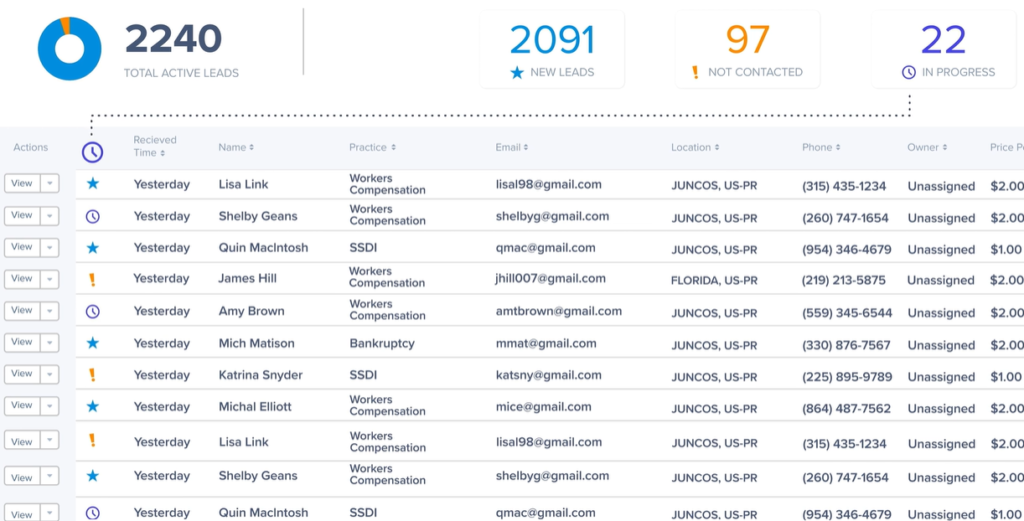
Each of these categories also has a coordinating icon. New leads are marked with a Blue star Uncontacted leads. An orange exclamation point and in progress leads a purple clock. If you want to find one specific lead, you can use the search bar in the all active leads section to find active leads received within a specific timeframe. Choose your preferred dates from the calendar or select one of our preset ranges.
Then click the green apply button to separate your leads from others in your firm. Try toggling the show my lead slider. This highlights the leads you’ve been assigned to ensuring you never miss an opportunity. Each row shows a lead’s primary information, such as their name and contact information. Leads also have unique ID codes, which you can find on the far right hand side of the row.

To change any lead status, request a credit, or assign a lead. Click the action dropdown to the left of their name. Then simply select which action you would like to take. Please note, if you request a credit for a lead, that lead will move from active leads to the disputed lead section. It will remain in the disputed section until you manually mark it as closed.
At the top right hand side of the Leads Manager header, there is a download all button. This retrieves all active, closed and disputed leads and compiles them into a downloadable spreadsheet. To access yours, simply select your desired timeframe from the dropdown. Then click the green download button.
Click anywhere in the row for a more in-depth view of the lead. Here you’ll find a case summary, financial information, and a note section that allows you to record additional information. This detailed view also holds the communication section where you can find convenient email templates designed to help boost conversions. Please note when you select a template, you will be directed away from the Leads Manager to send the message via your email provider. Any responses you receive will go to your email inbox, not the Leads Manager.
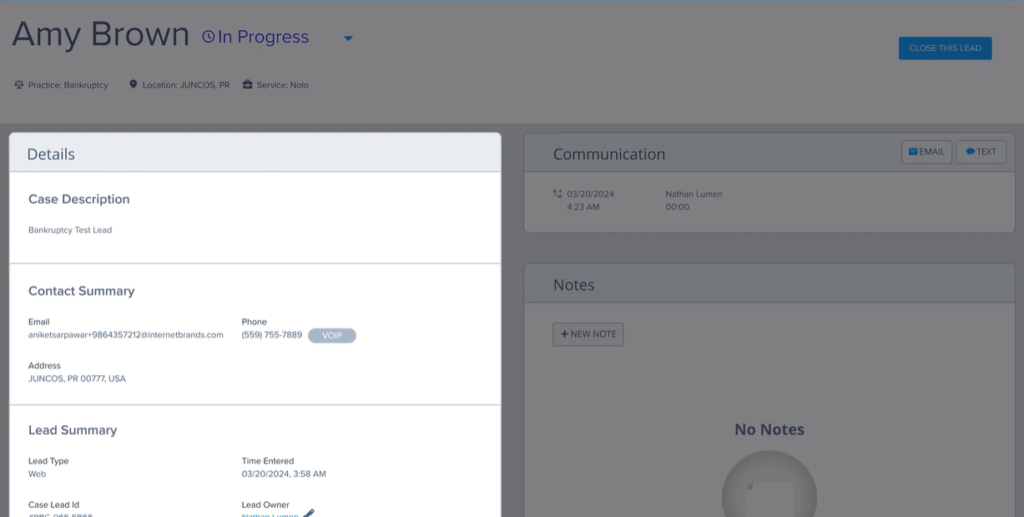
Once you’ve sent out your email, you can change your lead status in the dropdown next to their name. Thank you for taking the time to learn more about the Leads Manager. We are glad to have you here.